[1] Downloading and Installing WinCVS is pretty straightforward, so I will leave that up to you to do on your own.
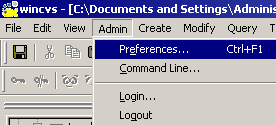
[2] Once installed, run WinCVS and edit the preferences:
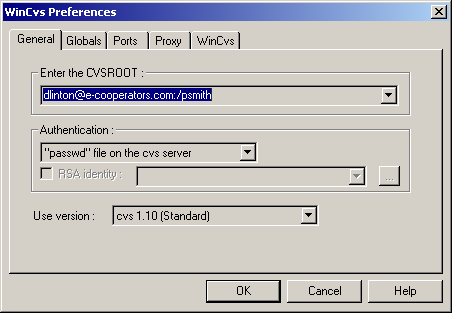
- enter the CVSROOT "[email protected]:/psmith" [no quotes]:
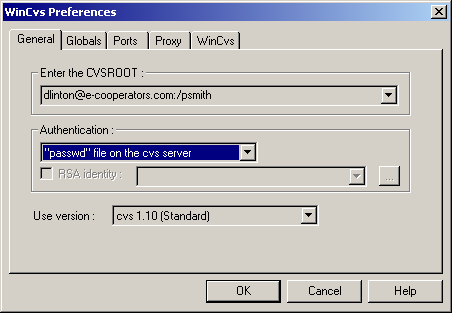
- make sure the Authentication is set to "passwd" file on the cvs server:
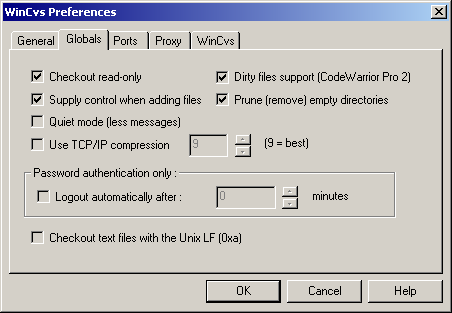
- go to Globals tab and make sure Checkout read-only is selected:
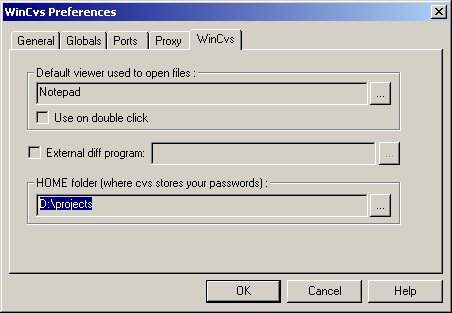
- go to WinCVS tab and enter the directory where your passwords will be stored:
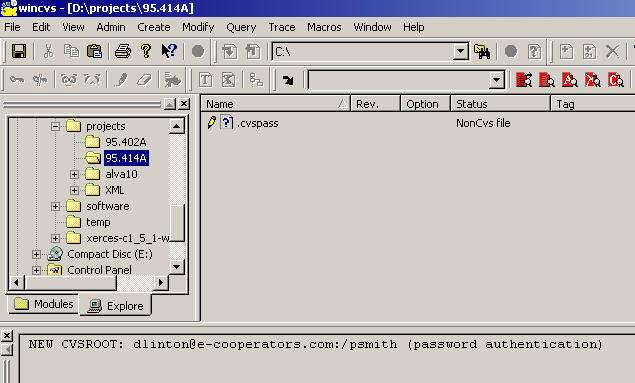
-click OK and you'll see:
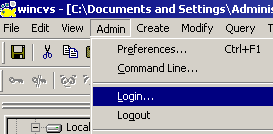
[3] Login:
- enter "java" as the password [no quotes]:
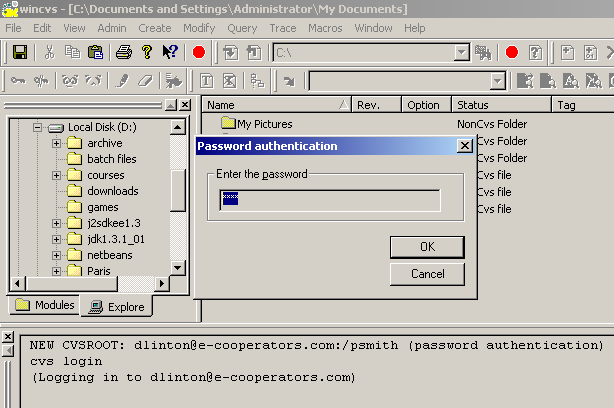
- click OK and the output log should indicate that the logon was successful:
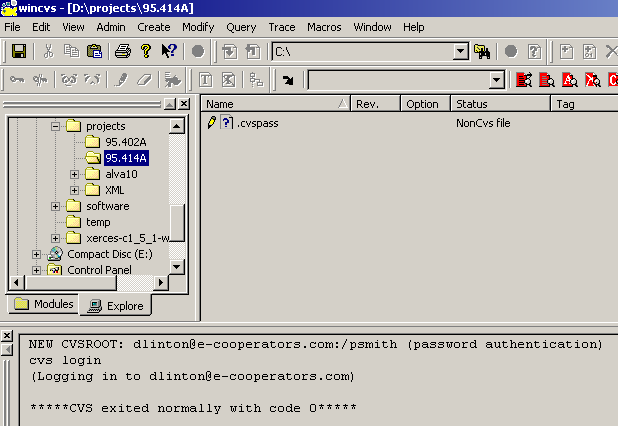
[4] Grab the latest version by checking out a module:
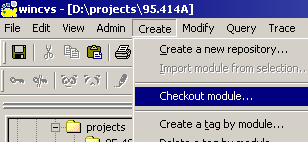
- enter the module name "95.414A" [no quotes]:
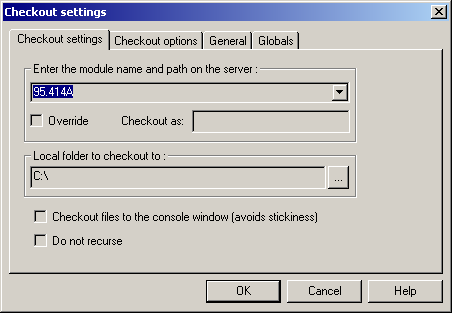
- choose the directory in the file structure that you want to use as your working directory:
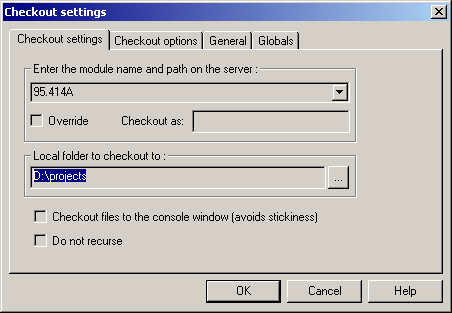
- click OK and you should see the following output in the log window [notice that you'll also see the folder 95.414A if you have the working directory selected in the Workspace]:
[6] See the WinCVS Howto for basic operations. Note that the howto is for version 1.0.x, whereas we will use version 1.2, but everything corresponds fairly closely.